N-up print layout: print 2 or 4 PDF pages per sheet
Learn what N-up printing is, when to use 2-up or 4-up layouts, and how to create a print-ready PDF in your browser with pdfruk — free, private, and no upload.
Published: 19 июля 2026 г.
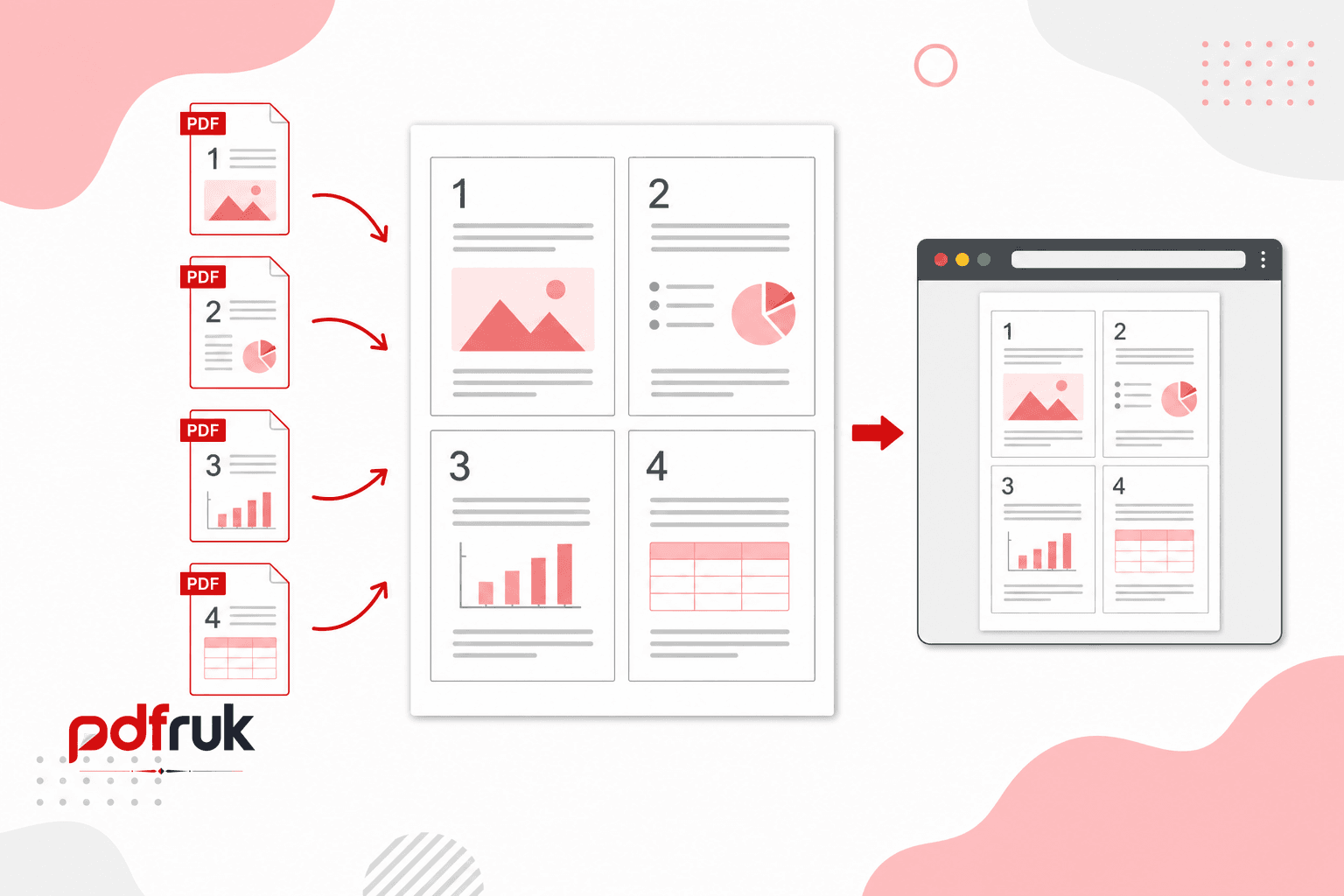
Printing a 40-page report page-for-page uses 40 sheets of paper. N-up layout — sometimes called imposition — packs multiple pages onto each sheet so you use less paper, spend less on ink, and carry lighter handouts. With pdfruk's N-up Print Layout tool you choose how many pages appear on each sheet, preview the result, and download a new PDF ready for your printer — all in the browser, with no account and no file upload.
What you can do with N-up layout
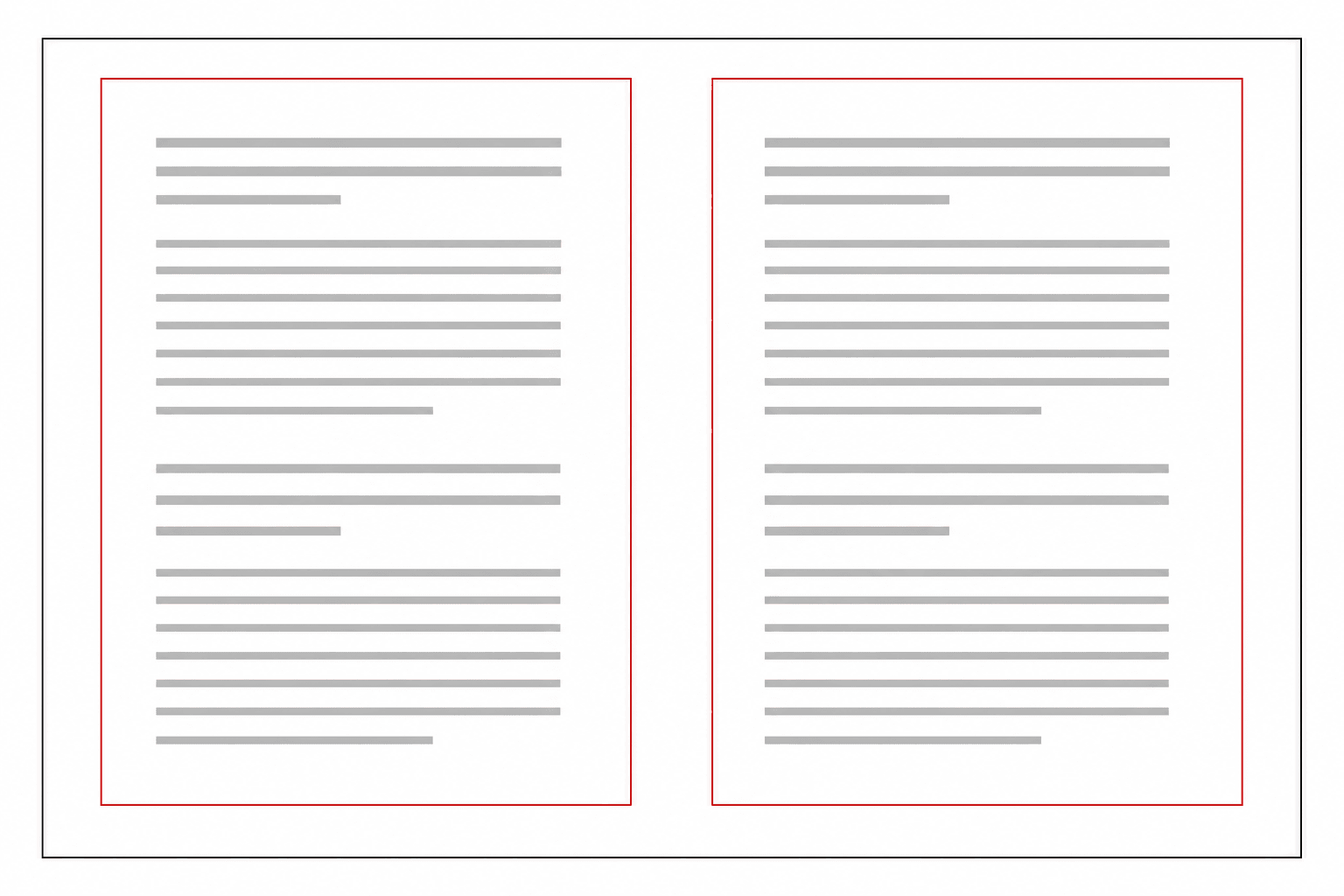
- 2 pages per sheet — side by side (2×1): Best when your original pages are portrait and you want a landscape sheet with two pages next to each other. Ideal for slide decks, wide tables, or comparing two pages at once.
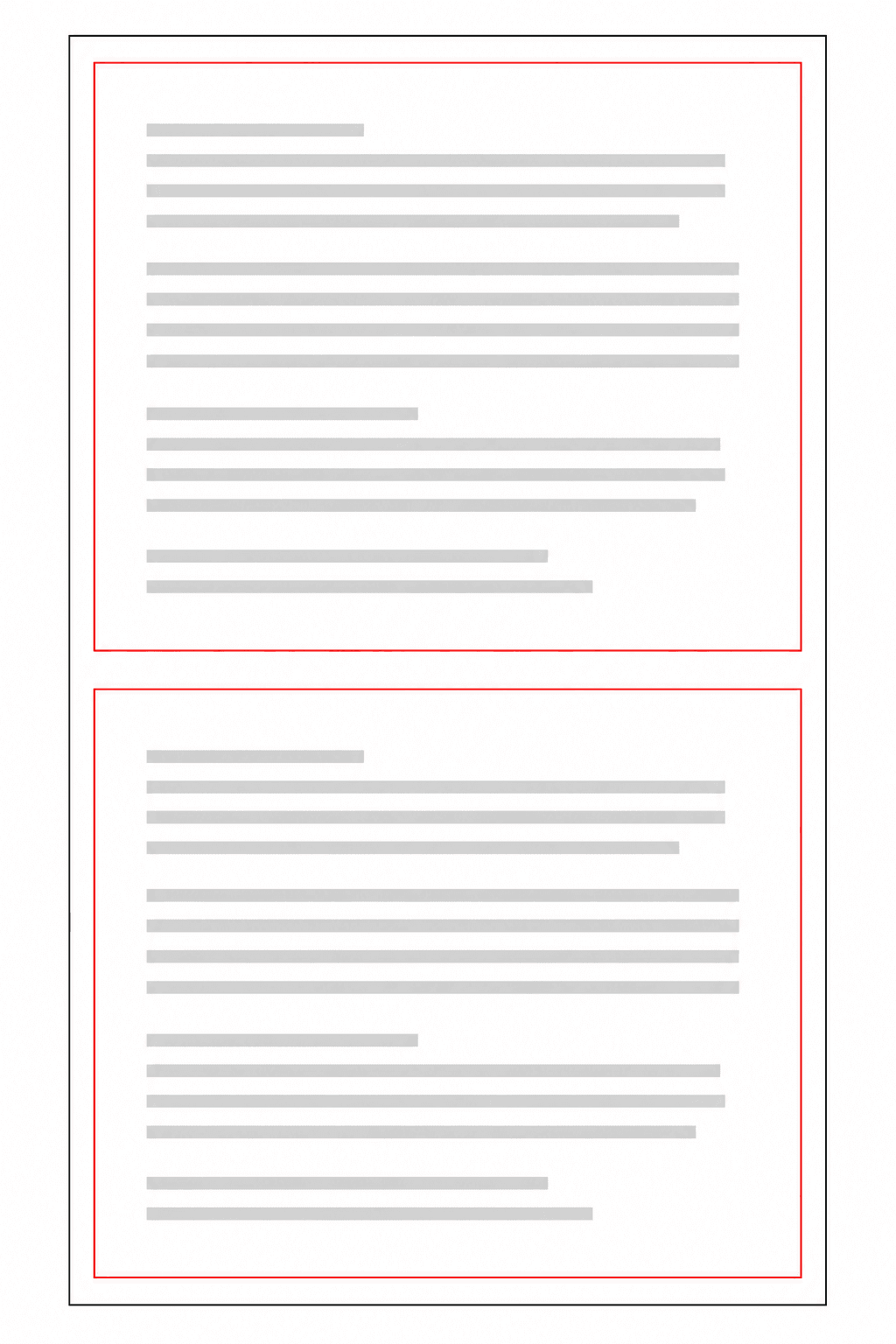
- 2 pages per sheet — stacked (1×2): Keeps a portrait sheet orientation with one page above the other. A natural fit for A4/Letter documents you still want to read in order after folding or cutting.
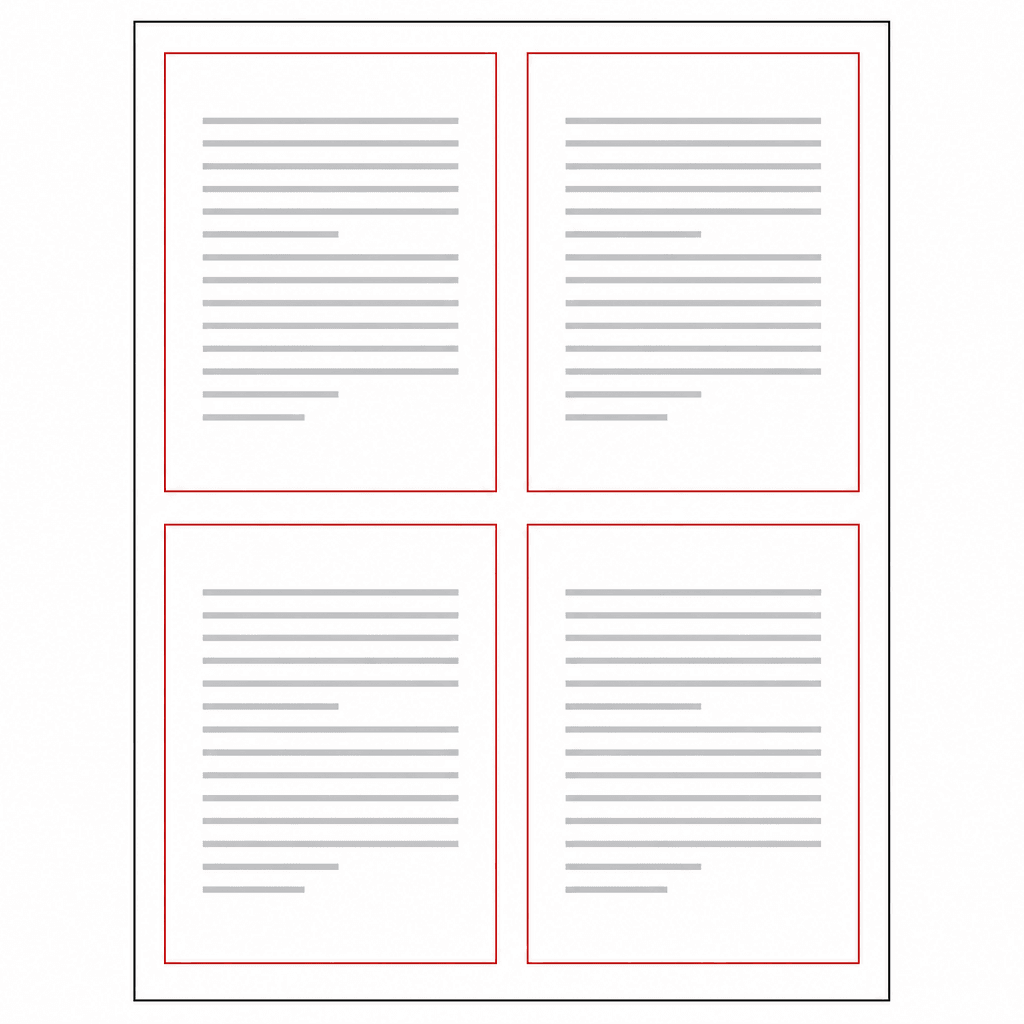
- 4 pages per sheet — 2×2 grid: The most compact option. Four original pages on every printed sheet — great for draft review copies, meeting packets, or study notes where full-size pages are not required.
- Adjustable gutter: Add space between pages (0–16 pt) so content does not touch at the fold line or when you trim sheets by hand.
- Live preview: See how each output sheet will look before you process the file, including a count of how many physical sheets you will print.
- Vector-quality output: Pages are placed as vectors, not rasterized screenshots, so text stays sharp when you print or zoom in.
Layout options at a glance
2×1 — side by side
1×2 — stacked vertically
2×2 — four pages per sheet
When N-up printing helps
- Meeting handouts: Share a full deck or report using half the paper.
- Draft review: Print long documents at 4-up for markup without wasting full-size pages.
- Course materials: Students get readable copies while you reduce printing costs.
- Legal and HR packets: Combine policy pages for internal distribution — especially when combined with pdfruk's private, browser-based processing.
- Home and office printing: Many printer drivers offer "2 pages per sheet" but only after you pick the right orientation. Creating an N-up PDF first gives you a file that prints consistently on any device.
How to create an N-up PDF with pdfruk
- Open the N-up Print Layout tool.
- Drop a PDF onto the upload area or click to browse. One file at a time — multi-page documents are supported.
- Scroll through the original page thumbnails on the left to confirm you have the right document.
- Choose a layout: 2×1 (side by side), 1×2 (stacked), or 2×2 (four per sheet). The preview on the right updates immediately.
- Set the gutter — the gap between pages. Use 0 pt if pages should touch; 8 pt is a good default when you plan to cut or fold between pages.
- Check the output summary for how many print sheets your document will use, then click Create layout and wait a few seconds while the PDF is built locally.
- Download the new PDF (named with "-n-up" appended) and print it from your usual PDF viewer. No scaling tricks required — each output page already contains the correct number of source pages.
Printing tips
- Match layout to paper: 2×1 works well on landscape; 1×2 and 2×2 on portrait. If pages look cramped, try 2-up instead of 4-up.
- Use gutter for cutting: When you will trim sheets by hand, add 8–12 pt gutter so content is not lost at the cut line.
- Print at 100% scale: The output PDF is already impositioned. Avoid "Fit to page" or extra "Pages per sheet" settings in the print dialog — they would shrink pages twice.
- Need booklet folding? For saddle-stitch booklets with correct page order for folding, use the Booklet Imposition tool instead — it reorders pages for duplex printing and stapling.
- Large files: Very long PDFs may take longer depending on your device. Close unused browser tabs to free memory.
Privacy: your PDF stays on your device
Confidential contracts, medical forms, and internal reports are exactly the kind of documents people N-up print — so privacy matters. pdfruk processes N-up layout entirely in your browser. When you drop a PDF, the file is read from your device into memory. A local Web Worker rearranges the pages and returns a new PDF for download. Nothing is uploaded to pdfruk servers during that process. There is no sign-up, no email gate, and no watermark on your output.
You can verify this yourself: open your browser's Network tab, process a PDF, and confirm no document payload leaves your machine. For more on why browser-based tools are safer for sensitive files, see our guide on why browser PDF tools are safer.
N-up vs printer "pages per sheet"
Many printers and PDF viewers offer a "2 pages per sheet" option in the print dialog. That can work, but results vary by driver and device — pages may shrink unexpectedly or ignore gutter spacing. Creating a dedicated N-up PDF first gives you a fixed layout that prints the same everywhere, can be shared with colleagues, and keeps vector quality intact.